How to set up a TikTok LIVE game: step by step with MERRY Launcher
This guide covers every step of getting a TikTok LIVE game on stream from scratch: account, licence, MERRY Launcher, TikTok connection and the OBS Studio or TikTok LIVE Studio scene. Set aside fifteen minutes if you have never done it; the second time takes three.
1. Create your MERRY account
Create a free account page, enter your name and e-mail address. Click the link you receive to verify your address and set your password. You can also sign in with your Google account. Creating an account is free; access to the games opens with the licence you buy in the next step.
2. Choose your game and licence duration
Store, every game card shows the duration options. Pick the game and the duration, then hit “Buy” to go to Shopier’s secure payment page. Your card details never touch MERRY’s server. Once the payment is confirmed, the licence is assigned to your account and My account appears under “My licences”. Each game has its own licence; if you want to stream with more than one game, you need a licence for each.
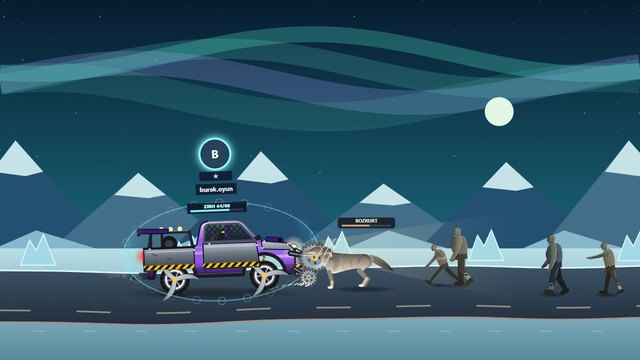
If you are not sure which game to pick, the what live stream games are guide and its breakdown of game types: a self-running game for chat streams, KAOS ROTASI or the Minecraft games for gaming streams.
3. Install MERRY Launcher (Windows)
At the top of the page, Download Launcher button gives you the Windows installer. After installing, sign in to the Launcher with your MERRY account; games you hold a licence for appear unlocked in the list. The Launcher downloads and installs the game and updates it with one click when a new version arrives. KAOS ROTASI and the Minecraft games require the Launcher; Minecraft Battle Royale and Bayrak Kapmaca also need Minecraft Java 1.20.1.
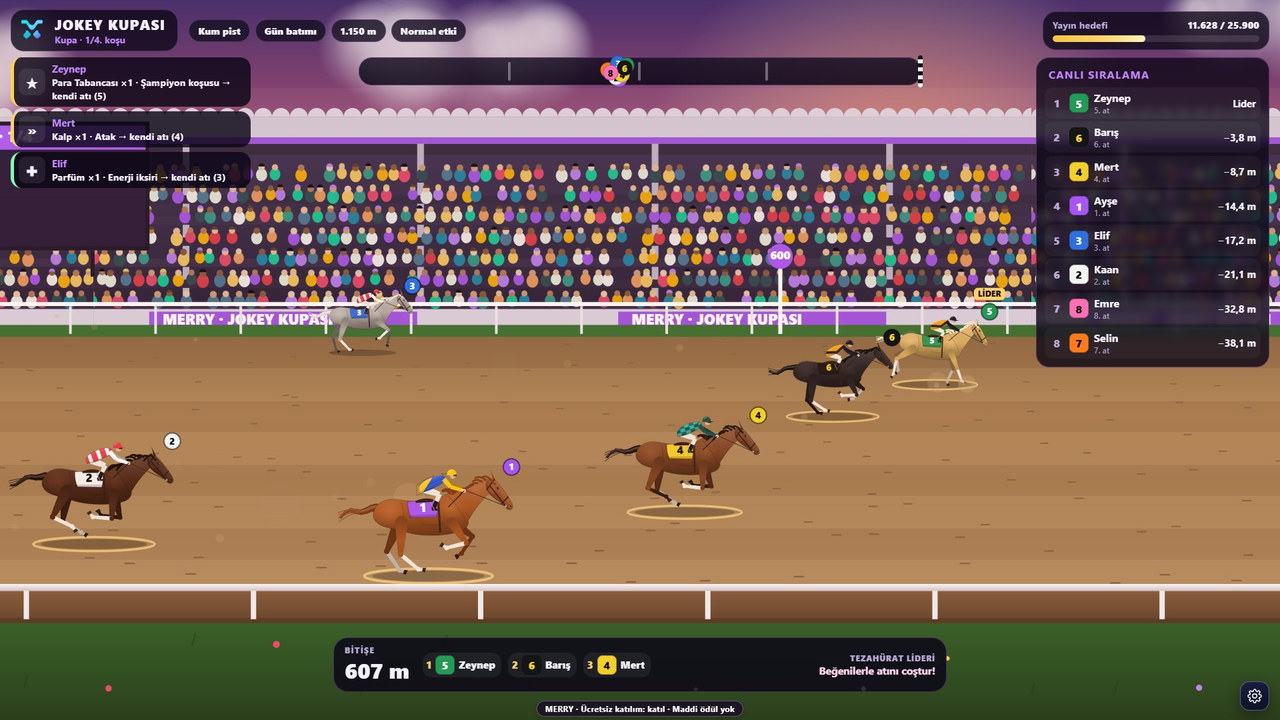
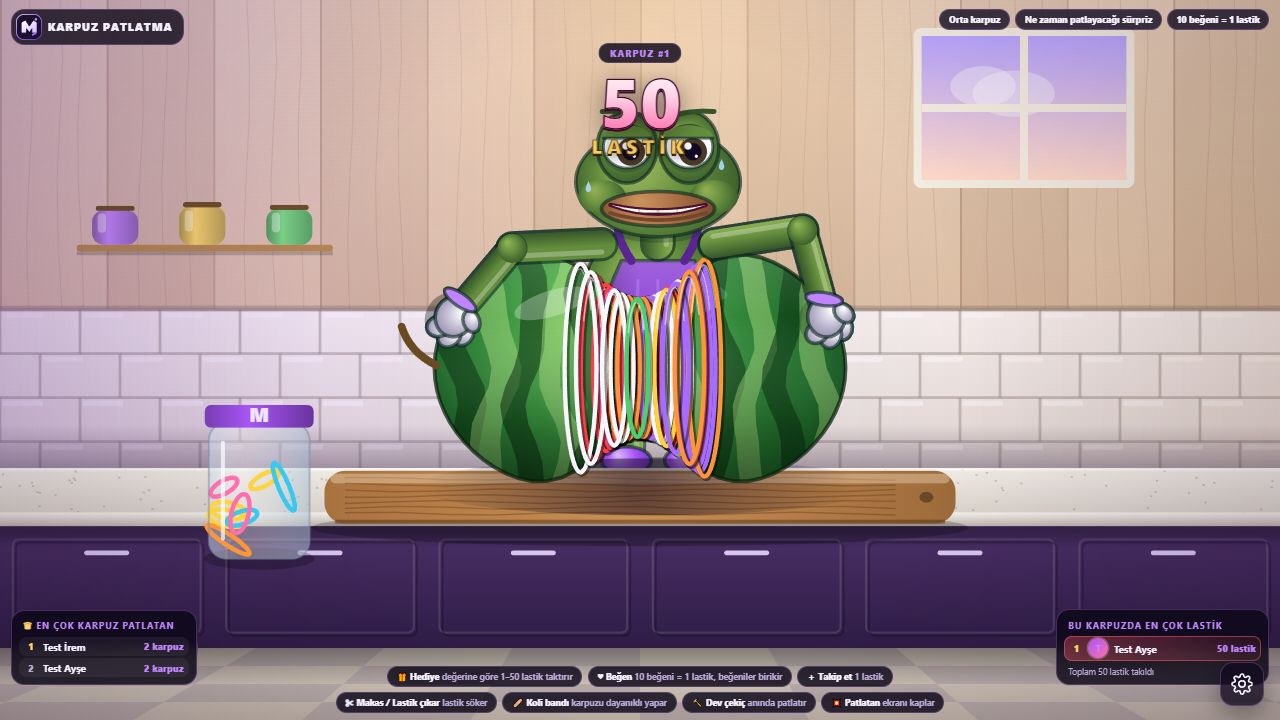
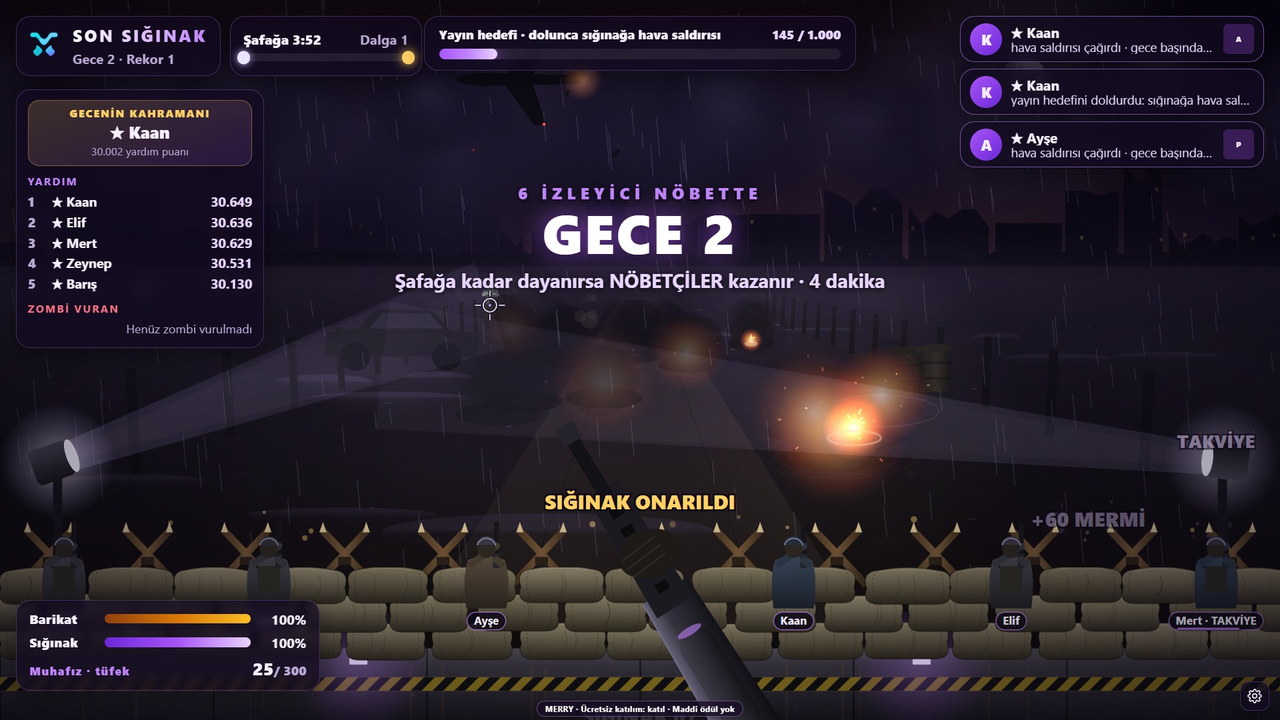
Live stream games (Son Sığınak, Jokey Kupası, Karpuz Patlatma and the others) also work without the Launcher: My account, pick the game and it opens in an up-to-date browser (Chrome or Edge). The Launcher’s advantage is a single window and easier window capture.
4. Connect to your TikTok stream
When the game opens, type your TikTok username (without the @) and Connect. Once the stream is live, the game starts reading like, follow and gift events. Your TikTok password is never requested; the game only uses public LIVE data. If the stream is not live yet, start it first from TikTok LIVE Studio or your phone, then connect.
Once connected, check the settings in the game panel: how many likes earn a character, whether a follow grants entry, the round length. Before going live, use test mode (“Test” or “Simulation” in the panel) to see how the game behaves with fake gifts.
5. Add the game window to your scene
OBS Studio if you use it: Sources → + → Window Capture → select the game window. In the game, the Stream view button hides the menus, so only the game goes into the scene. Place the window next to or below your camera feed; viewers seeing both you and the game boosts interaction.
TikTok LIVE Studio if you use it: Add Source → Window → game window. If you stream vertically, put the game window at the top and the camera at the bottom. If you take audio from the game window, make sure desktop audio is on; most MERRY games have their own music and effects.
6. Start the first round and explain it to viewers
The game round starts on its own. Two sentences in the first minute are enough: “A horse carrying your name hits the track when you send a gift, and when you follow.” Viewers who do not know what happens when they act will not join. When the round ends, read out the winner by name; it is the simplest habit that doubles participation in the next round. For more tips, see 10 ways to boost engagement article.
Common mistakes
- Trying to connect before the stream is live. The game only connects to a LIVE that is already running; start your stream first.
- Typing the username with an @. Type only the username.
- Capturing the wrong window. If you opened the game in a browser, use window capture rather than tab capture, and move the game tab into a separate window.
- Leaving test mode switched on in the panel. Turn off fake gift generation before going live.
- Not checking the licence period. When the licence expires, the game shows “No access”; go back to the store to renew.
FAQ
Does the Launcher run on Mac or Linux?
MERRY Launcher is for Windows. The live stream games open in an up-to-date Chrome or Edge browser, so they can also be used on a Mac; the Minecraft games and KAOS ROTASI require Windows.
I opened the game but gifts are not showing up, what should I do?
First check that your stream is actually live and that you typed your username correctly, without the @. Then press Connect again in the game. If the problem persists, end the stream and start it again; TikTok sometimes delivers a new stream’s events with a few seconds’ delay.
Can I run two games at the same time?
Each game runs in its own window and needs its own licence. Showing two games at once on stream is possible but confusing for viewers; we recommend starting with one game.
What happens to my game when my licence expires?
Game access closes, but your account and settings remain. When you buy a new period from the store, you pick up the same game where you left off.